

Did you know that Amazon Advertising provides you with detailed reports on how well your Amazon Ads are doing on the platform? In this blog, you will learn about Amazon Advertising Reports in detail.
We are going to dive deep into all types of Advertising Reports which will help Amazon sellers to see their progress and improve in the Amazon Advertising department.

What is Advertising Reports?
Amazon offers multiple PPC Advertising Reports to their Amazon sellers for different metrics to get details about different parts of Amazon Advertising such as Sponsored Displays, Sponsored Brand Videos, etc.
There are different types of Amazon Advertising Reports, which we will see down below as per different categories of Amazon Advertising.
Types of Amazon Advertising Reports:
Following are the different reports as per different advertising sections:
- Targeting Report
- Search Term Report
- Advertised Product Report
- Campaign Report
- Budget Report
- Placement Report
- Purchased Product Report
- Performance Over Time Report
- Gross & Invalid Traffic
- Search Term Impression Share Report
- Keyword Report
- Keyword Placement Report
- Campaign Report
- Campaign Placement Report
- Search Term Report
- Search Term Impression Share Report
- Category Benchmark Report
- Attributed Purchases
- Gross & Invalid Traffic
- Targeting Report
- Campaign Report
- Advertised Product Report
- Purchased Product Report
- Matched Target Report
- Gross & Invalid Traffic
How To Interpret Such Reports?
Below are a few reports that are more useful than above given all reports for the sellers. Most marketers refer to reports such as Search Term reports, Targeting reports, and Advertised Product Reports to optimize their PPC Campaigns.
Let’s discuss the most important advertising reports and see how we should use them:
Search Term Report
This type of report is mostly downloaded by PPC sellers to check the progress of their campaigns. This report focuses on the search term usage by customers and how well your added search terms are working for your campaigns and PPC.
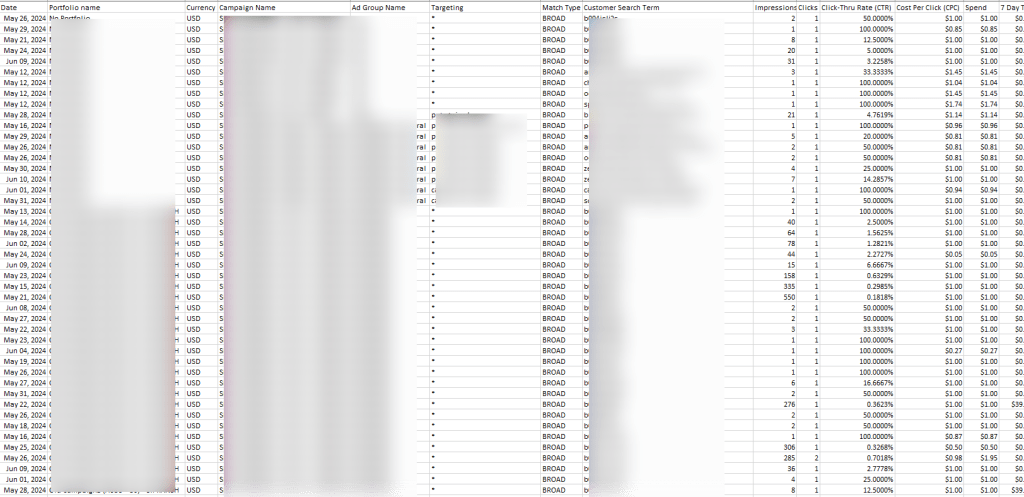
Following are the metrics that are found in search term reports:
- Campaign start and end dates
- Campaign name
- Ad group name
- Portfolio name
- Keyword targeted
- Customer search term
- Match type
- Impressions
- Spend
- Cost per click
- 7 days total sales
- Total advertising cost of sales
- Total return on advertising spend
- Clicks Thru rates
How to use Search Term Report?
You can use Search Reports to consider new keyword opportunities after 2 weeks of running multiple campaigns. These may help you improve those campaigns more efficiently with new and appropriate keywords.
You can simply filter the search term report with the help of ACoS to identify the keywords that are performing better and those that are not performing at all. To make this procedure easier for you, Amazon Seller provides a free Amazon PPC ACoS Calculator for filtering the same.
So using that you can simply divide you can simply divide your keywords between which are generating high ACoS and which are generating low ACoS. For the keywords that are generating low ACoS, you can simply move those keywords to phrase match. Again, if the phrase match keyword generates lower ACoS then you send those to exact match and then further refine them and reduce wasted ad spend.
Targeting Report:
The targeting report is for Sponsored Product Campaigns, it offers detailed information about versatile targeting options for your campaigns over the past 90 days.
This report shows every keyword, ASIN, and category that you are advertising on. It will also display the performance of all types of matches for auto-campaigns.
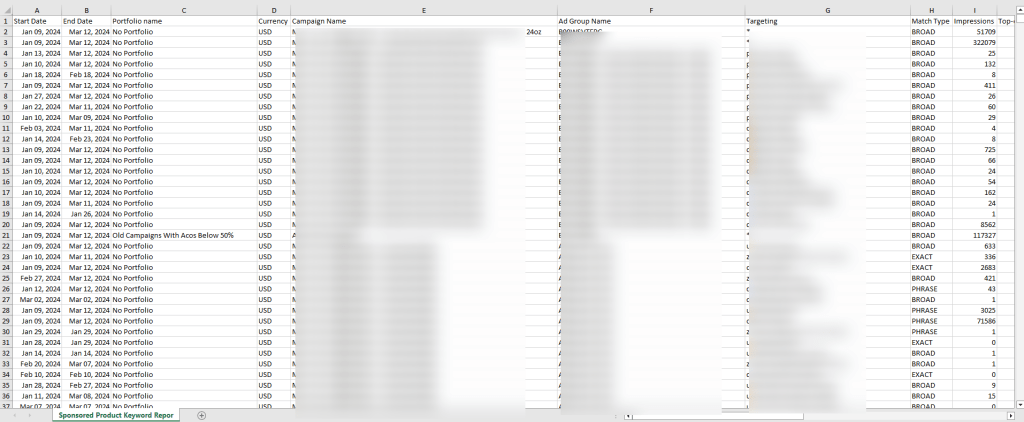
The following are the metrics that are found in targeting reports:
- Portfolio Name
- Date
- Campaign Name
- Ad Group Name
- Targeting
- Match Type
- Impressions
- Clicks
- Click-Thru Rate (CTR)
- Spend
- Cost Per Click (CPC)
- Total Advertising Cost of Sales (ACoS)
- Total Return on Advertising Spend (RoAS)
- 7-Day Total Orders
- 7-Day Total Sales etc.
How to use Targeting Report?
Targeting reports allow sellers to check how different product targets and different keywords perform over the period. With the help of this, you can easily adjust your bids, spot duplicate keywords, and maximize your ad budget.
For instance, if you see a keyword that has a high CTR with a low impression then it reflects the keyword has a potential though you are probably bidding too low for that target.
So in that case, you can increase the bid to reach more consumers and generate more sales. You can also identify products that have 0% ACoS which means these products are getting clicks but not any sales.
For that, you will need to optimize the product listing to improve the sales or move this keyword to negatives so your ad spend can simply focus on high-converting keywords.
Apart from all these, you can also identify the best-performing ASINs of the last 90 days.
Advertised Product Report:
This report provides comprehensive performance and sales metrics for all your advertised ASINs used in all campaigns that have received at least one impression.
This report also breaks down all the ASINs performance by ad groups, campaigns, and SKUs.

The following are the metrics that are found in the advertised product report:
- Start Date & End Date
- Portfolio Name
- Campaign Name
- Ad Group Name
- Advertised ASIN
- Advertised SKU
- Impressions
- Clicks
- Click-Thru Rate (CTR)
- Spend
- Cost Per Click (CPC)
- 7-Day Total Orders
- 7-Day Total Sales
- Total Advertising Cost of Sales (ACoS)
- Total Return on Advertising Spend (RoAS)
How to use an Advertised Product Report?
You can simply sort the report by 7-day Total Sales to identify the best-performing products.
For instance, if you are planning for a Prime Day marketing strategy and you want to add more ad budget to profitable products. Then with the help of the 7-Day Total Sales metric, you can easily identify the trending products and simply allocate your advertising budget to those products.
Placement Report:
According to your bid, Sponsored Product and Sponsored Brand ads can appear in different places like the top of the search, the rest of the search, etc.
The placement report will give you the performance metrics of your ads based on their locations. For instance, the placement report will help you figure out which campaign placement works best for you.
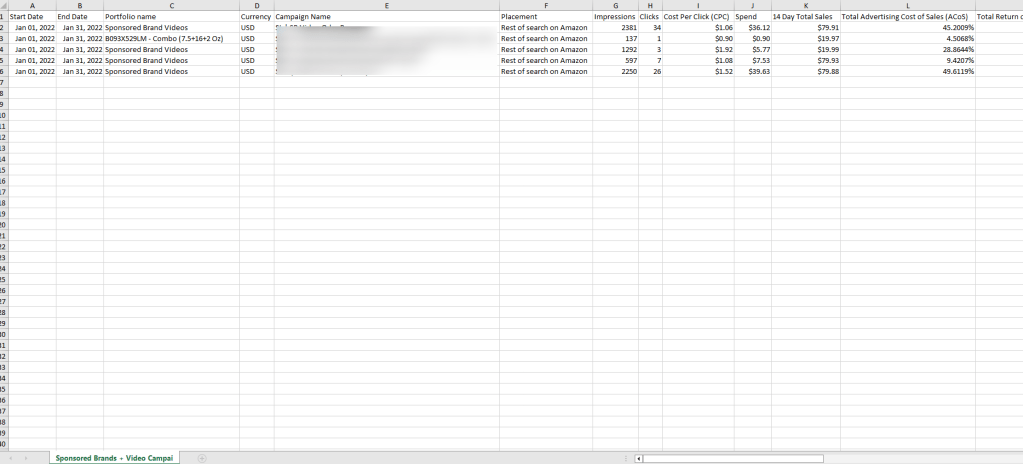
The following are the metrics that are found in the placement report:
- Date
- Currency
- Portfolio Name
- Campaign Name
- Placement
- Bidding Strategy
- Impressions
- Clicks
- Spend
- Cost Per Click (CPC)
- 7-Day Total Sales
- 7-Day Total Orders
- Total Return on Advertising Spend (ROAS)
- Total Advertising Cost of Sales (ACoS)
How to use a Placement Report?
For instance, from the placement report, you can easily track the performance of important metrics such as impressions, and sales to identify performance across the top of search, ACoS, or product details page placements.
You can use this knowledge to adjust your bids to optimize your campaign placements and generate more ROI.
Budget Report:
This report helps you manage your ad campaigns better. This will give you a better idea of future sales and revenue if your campaigns get out of budget. It also provides you with better recommendations to minimize the chance of running out of budget.
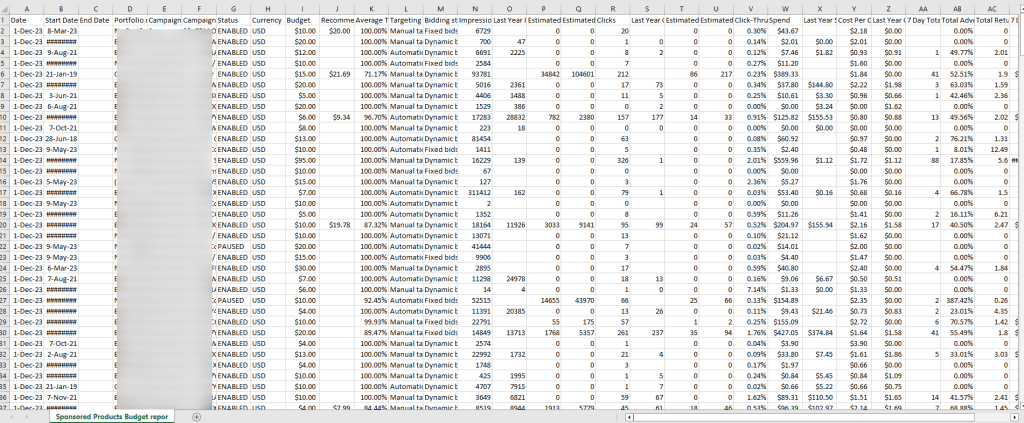
The following are the metrics that are found in the budget report:
- Clicks
- Budget
- End date
- Click-Thru Rate [CTR]
- Average Time in Budget
- Campaign Name
- Bidding strategy
- Cost Per Click [CPC]
- Currency
- 7 days total orders
- 7 days total sales
- Campaign Type
- Estimated Missed Clicks Range Max
- Estimated Missed Clicks Range Min
- Impressions
- Portfolio Name
- Estimated Missed Impressions Range Min
- Estimated Missed Impressions Range Max
- Spend
- Status
- Estimated Missed Sales Range Min
- Estimated Missed Sales Range Max
- Recommended budget
- Start date
- Total Advertising Cost Of Sales[ACOS]
- Total Return Pn Advertising Stipend[ROAS]
How to use a Budget Report?
You can use a budget report to check the average time of campaigns, estimated impressions, sales, clicks, etc. It also showcases sales you missed due to a limited daily ad budget for your campaigns.
Ideally, you can use this report to identify your high-performing campaigns with a percentage showcasing the average time in budget lower than 100% for your performance tracking.
Purchased Product Report
Often we notice that customers click on a sponsored ad or sponsored product ad display but they check out buying or purchasing some different product.
The purchased product report shows the details of the product that the customer purchased instead of the sponsored display product. This report eventually helps you recognize the cross-selling opportunities.

How to use a Purchased Product Report?
This report also helps in evaluating the advertising opportunities for the products whether it needs to be more advertised or not.
The following are the metrics that are found in the purchased product report:
- Start date
- End date
- Campaign name
- Currency
- Portfolio name
- Cost type
- Bid optimization
- Ad group name
- Purchased ASINS
- Advertised ASIN
- Advertised SKU
- 14-day brand halo ASIN order
- 14-day brand halo ASIN units
- 14-day brand halo ASIN sales
Gross and Invalid Traffic Report
Your listing must be capable of converting clicks into sales. Some issues like non-human, fraudulent, and bot traffic make it difficult to successfully check out to successful sales.
The gross and invalid traffic report shows the accumulated traffic or the customers of the website are organic or fraudulent.
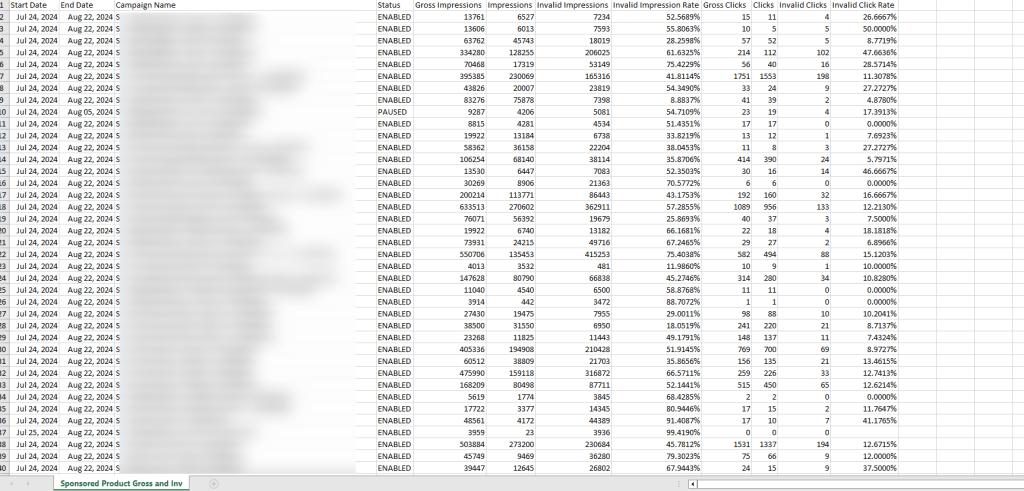
The following are the metrics that are found in the purchased product report:
- Campaign Name
- End Date
- Clicks
- Gross Clicks
- Impressions
- Gross Impressions
- Invalid Clicks
- Invalid Click Rate
- Invalid Impression Rate
- Invalid Impressions
- Status
- Start Date
How do you use Gross and Invalid Traffic Reports?
This report helps us understand the traffic metric for your campaign, such as gross impressions, invalid impressions, gross clicks, invalid clicks, etc.
It also includes traffic which can show the actual data like double clicks, duplicate visits, etc.
How To Download Amazon Advertising Reports from Amazon Seller Central?
Following is a step-by-step process for downloading the advertising reports from Amazon Seller Central:
- Log in to your Amazon Seller Central account.
- Then go to “Reports” from the left sidebar, and then select “Advertising Reports”.
- If you have created a few reports in the past, then you can simply download them directly from the page.
- If you have not created any reports in the past, then you need to click on the “ Create a report” button on the top corner.
- After, that you can simply select the configuration and reporting settings as per your needs.
- Then click on “ Run Report.”
- Now you can download the report once it is available.
If you’re looking to improve your Amazon advertising, why not go all in and do it right? Whether you’re starting with ads, consider bringing in our Amazon experts to help.
Advertising can make a difference in promoting and attracting an audience to your brand. That’s where our Amazon Advertising experts come in. We’ll brainstorm ideas, design engaging visuals, and write persuasive copy that grabs attention and keeps customers from scrolling. So, why settle for mediocre Advertising when you can have something truly outstanding?